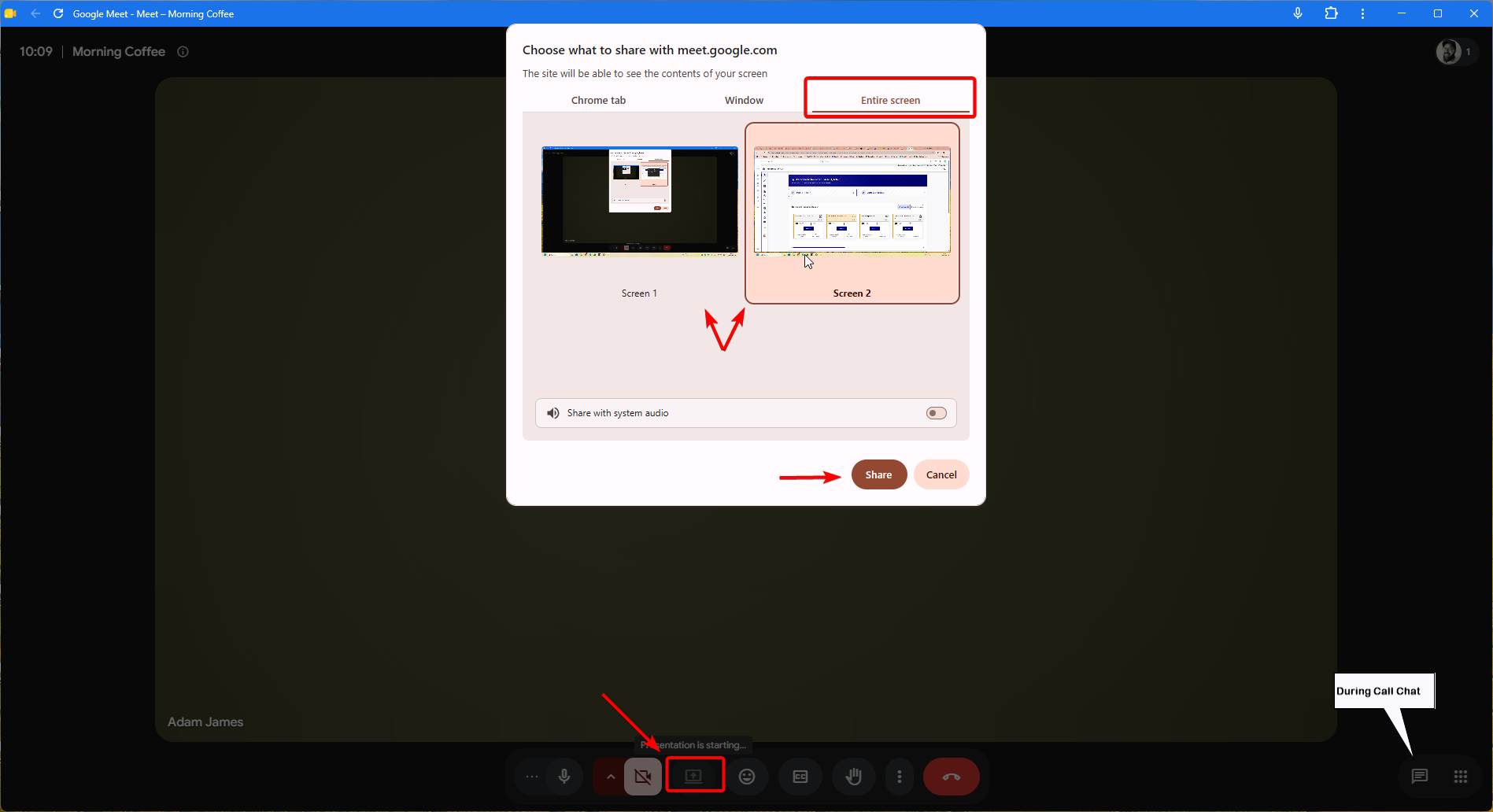
If you have been invited to join a video call with Zeidman Development it will likely via Google Meet. It is common practice for us to ask you share your screen. To do this, look to the bottom of the screen and to the right of the 'camera' button you will see a rectangle with an arrow pointing up. This is the Share Screen button. Click it. This will result in a pop-up window.
There are three tabs. We recommend that you click the third tab to share 'Entire Screen' since it is likely we will be moving between your browser and spreadsheets/Excel files.
If you have 1 screen, simply click on the screen and the 'share' button will become clickable.
If you have multiple screens, select the appropriate screen and then the 'share' button will become clickable.
Recommendation: If you are sharing your screen, please do turn off any notification on your computer so that your private messages are not shared with everybody on the call. Plus it can be very distracting.
Requesting a recording of the call: If you would like the call to be recorded, please do ask the Zeidman Development representative at the start off the call
Sending a Message: if you would like to share anything, ask a question or place a comment, please use the 'Chat' feature in the bottom right-hand side of the screen