
After installing the Chimpegration for Salesforce package from the AppExchange, there are a few final steps that need to be taken before you can start using Chimpegration. These are mainly permission-based settings, so ensure you have the ability to make these adjustments:
Salesforce Setup
- Click on the Cog in the upper right corner and click on 'Setup'
Navigating to the Object Manager from the Salesforce home page
On the left hand side menu, under Platform Tools, expand the Objects and Fields option
Click Object Manager
From within the Object Manager...
Setting up the Campaign Object
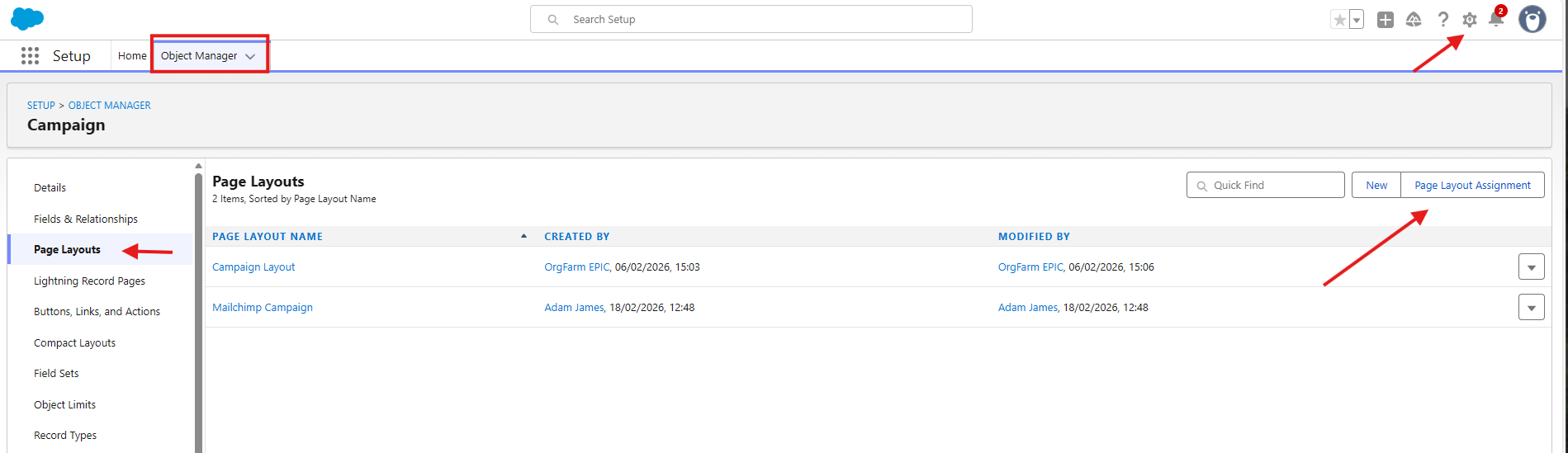
Scroll to find the Campaign object and click it
From the left hand menu, select Page Layouts
Click the Page Layout Assignment button that appears on the right hand side of the screen
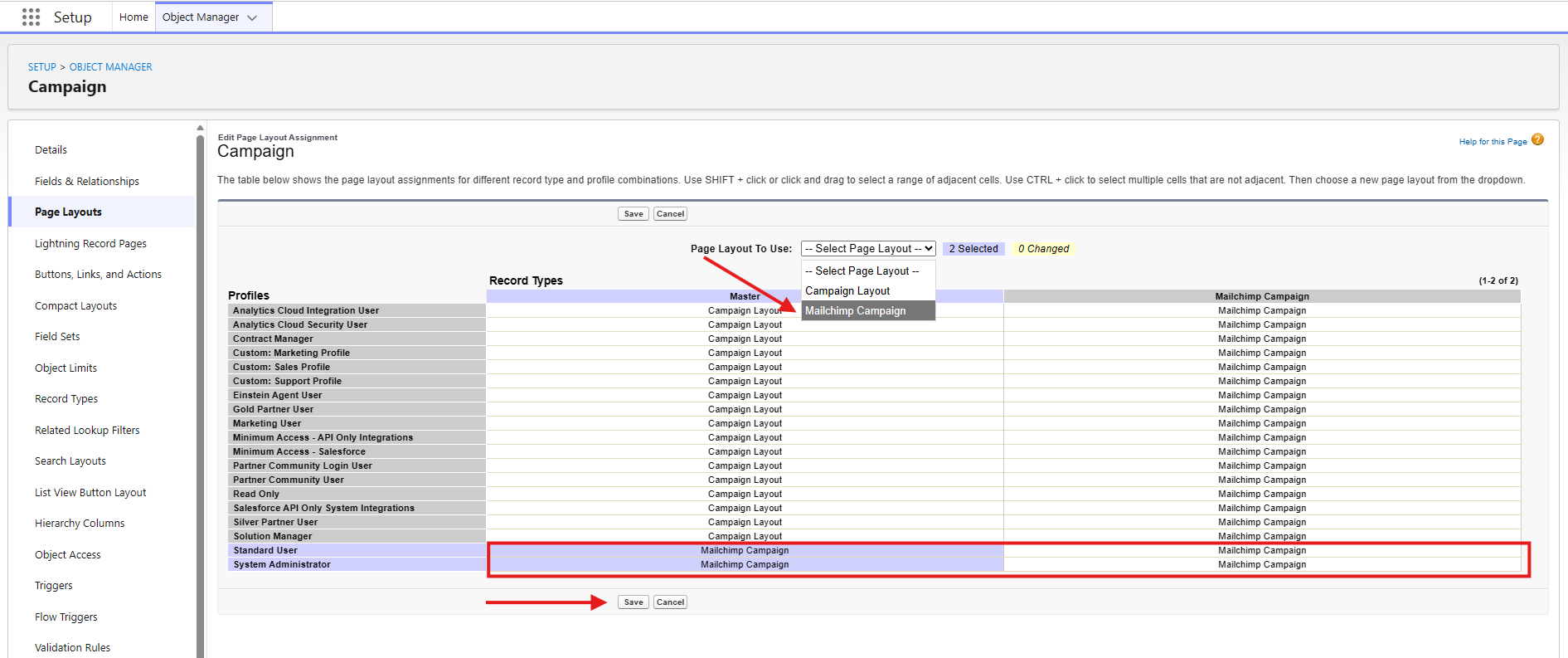
- Click Edit Assignment
- Select the Mailchimp Campaign header to select all profiles, then from the Page Layout To Use, select Mailchimp Campaign
- Click Save
Repeat for Campaign Member Object
Scroll to find the Campaign Member object and click it
From the left hand menu, select Page Layouts
Click the Page Layout Assignment button that appears on the right hand side of the screen
Click Edit Assignment
Select the Mailchimp Member header to select all profiles, then from the Page Layout To Use, select Mailchimp Page Layout
Click Save
Repeat for Mailchimp Activity Object
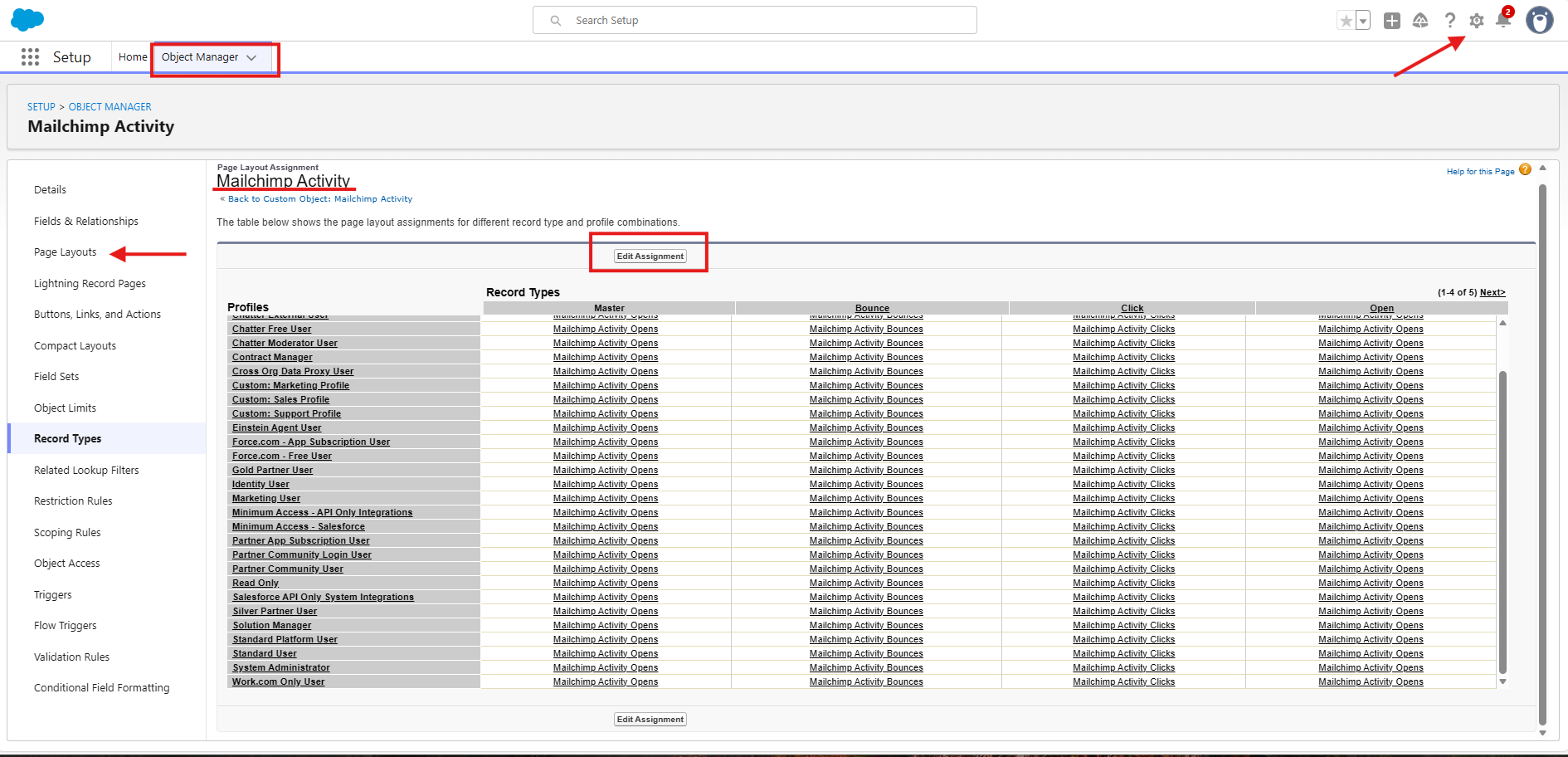
- Scroll to find the Mailchimp Activity object and click it
- From the left hand menu, select Page Layouts
- Click the Page Layout Assignment button that appears on the right hand side of the screen
- Click Edit Assignment
- Highlight each column using the header, and select the appropriate page layout
- Set the Master to Open
- Click Save
Give access to the Chimpegration Record Type
Navigating to permission sets from the Salesforce home page
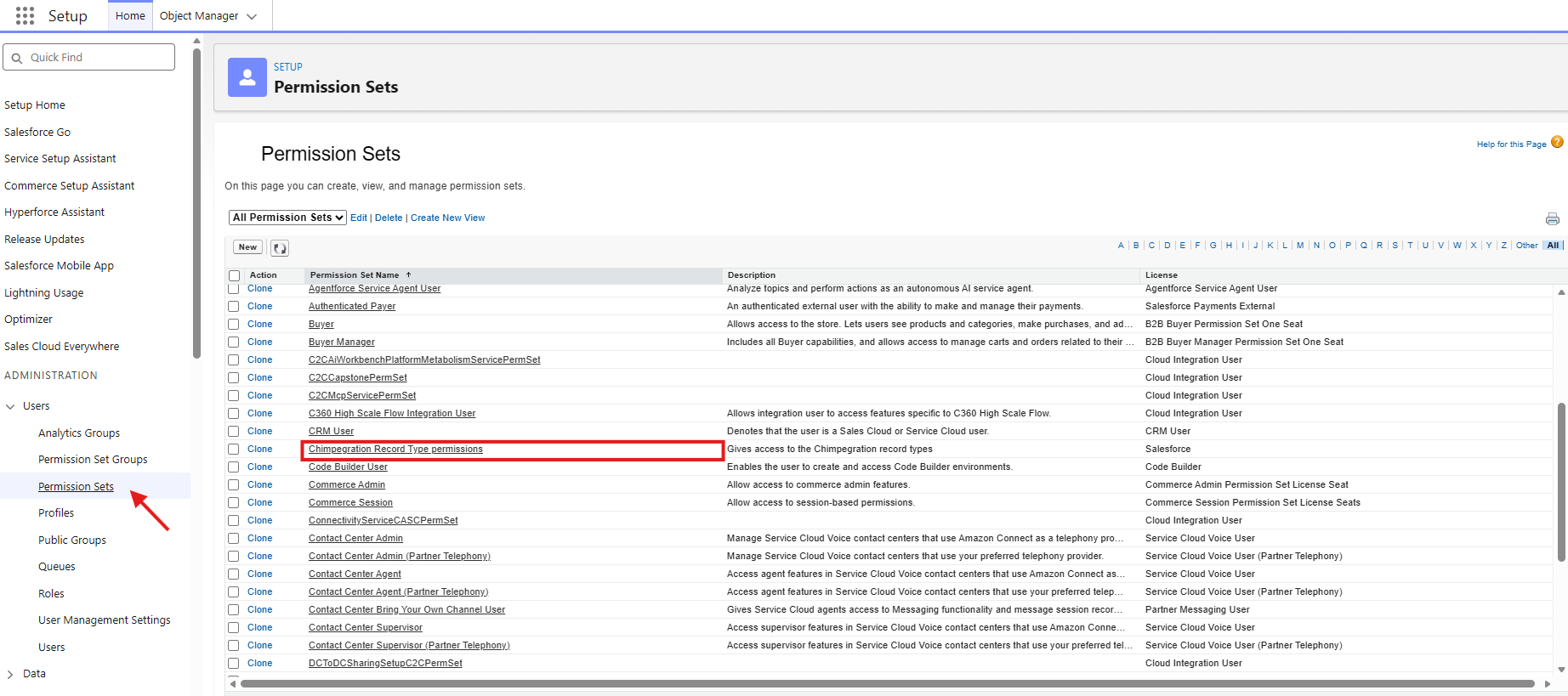
Still within Setup, head to Administration, expand the Users option
Click Permission Sets
From the list of permissions, select Chimpegration Record Type Permissions
Click the Manage Assignments button
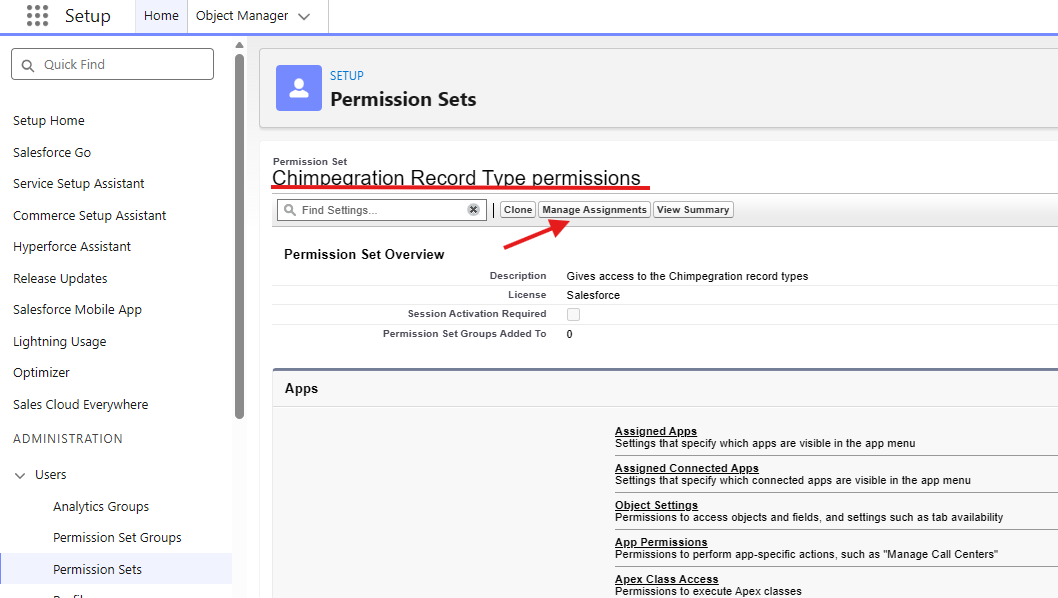
Click Add Assignment
Select the user(s) that will need access to the permissions, and then click Next
Set an expiry date if needed, the recommendation is No expiration date
Click Assign
Assign access to the Chimpegration layouts by User or by Profile
To be able to view and use Chimpegration for Salesforce, the custom layouts for Campaign, Campaign Member and Mailchimp Activities will need to be assigned to any Profiles assigned to users needing access
Give access to the Chimpegration Record Type
Navigating to users from the Salesforce home page
Still within Setup, head to Administration, expand the Users option
Click Profiles
Select the profile to assign the permissions to (DO NOT Select 'edit', select the profile)
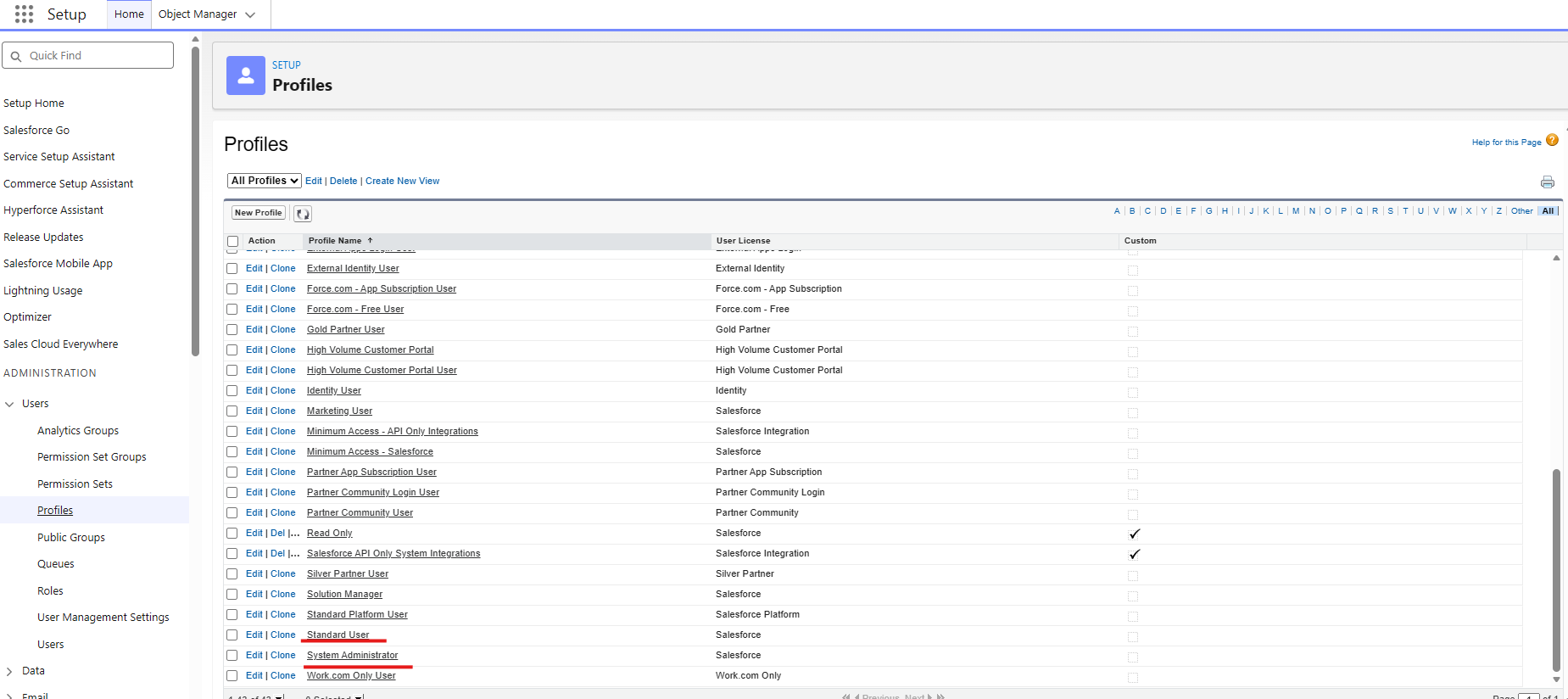
Assigning the custom layout for Campaign, Campaign Member and Mailchimp Activities to EACH profile
Scroll to the Record Type Settings section
Look for Campaigns, click Edit next to Campaigns
The Mailchimp Campaign record type will need to be moved to the Selected Record Types column
Click Save
This will take you back to the Profile screen
Scroll back to the Record Type Settings section
Look for Campaign Members, click Edit next to Campaign Members
The Mailchimp Member record type will need to be moved to the Selected Record Types column
Click Save
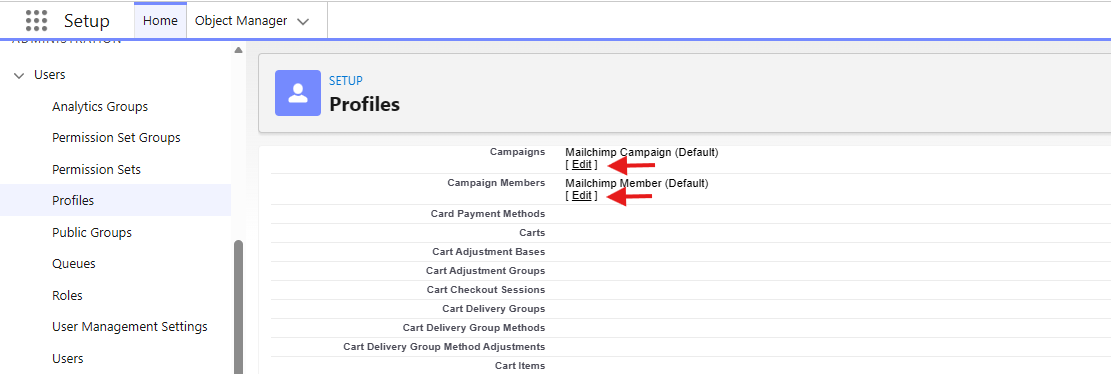
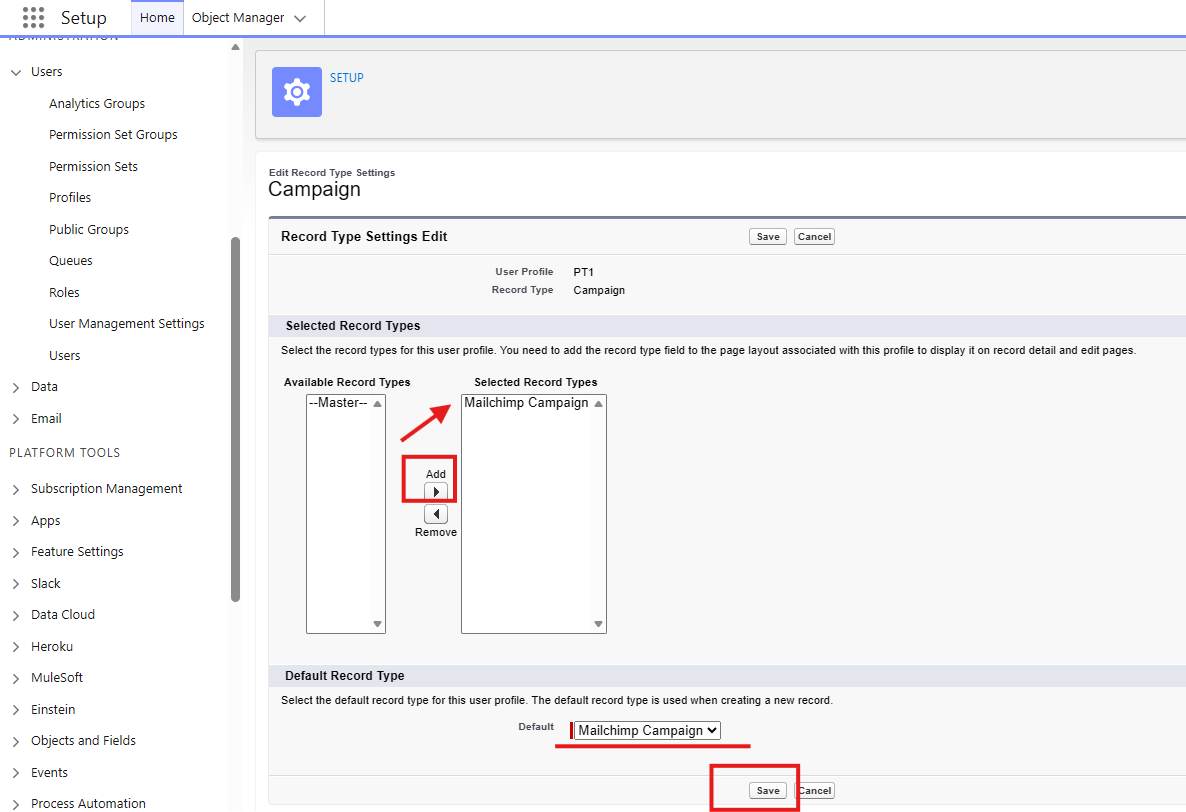
Next, scroll down further to Customer Record Type Settings
Select 'Edit' for 'Mailchimp Activities'
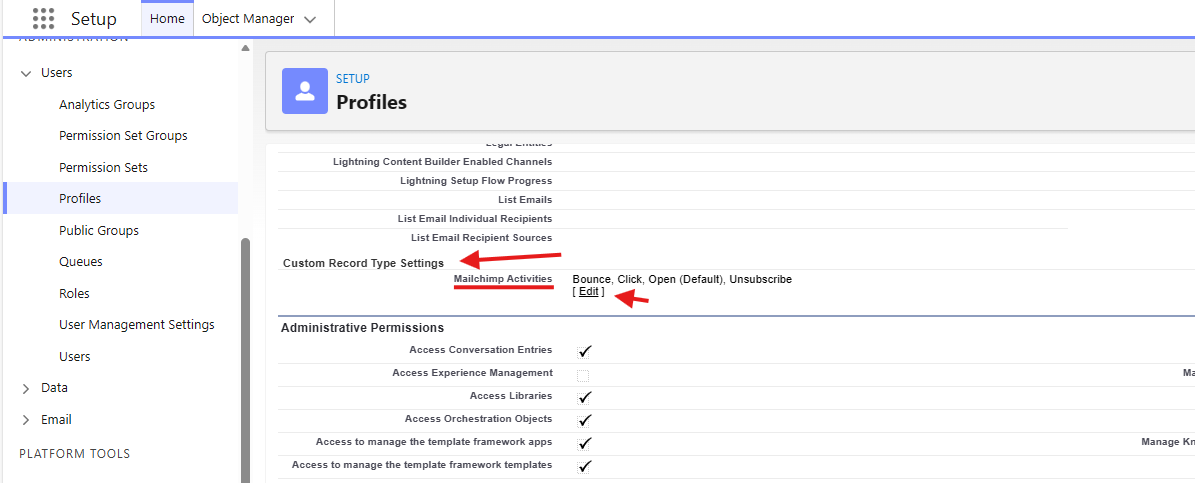
Move Opens, Clicks, Bounces and Unsubscribe over to Selected Record Types.
Default Record Type should be 'Open'
Click Save
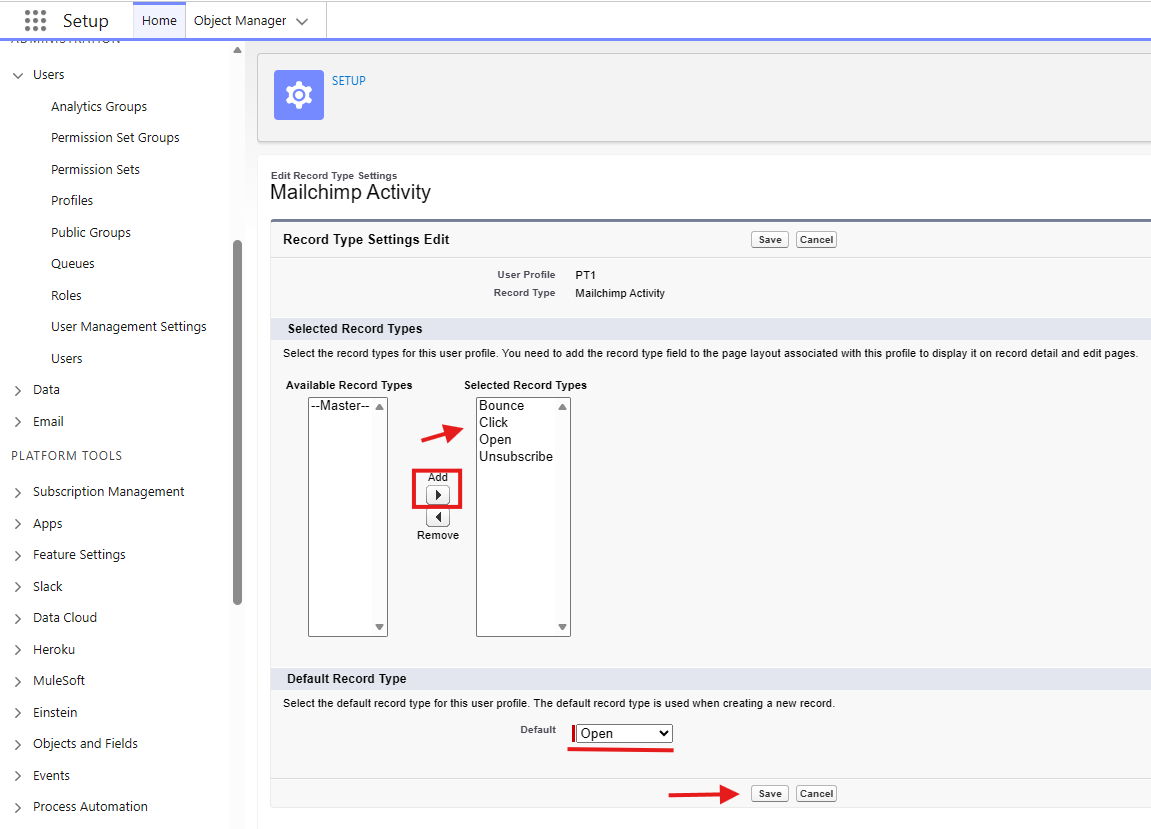
- Repeat for each Profile you want to grant permission
Troubleshooting
Cannot add a Mailchimp Campaign
If you get an error message telling you that you do not have permission create a Mailchimp Campaign or View a Mailchimp Campaign, contact my administrator, then head back to 'Setup'
Under Administration menu, expand Users
Click Users, and then click the name of the user in question
In the top section called User Detail, ensure they have Marketing User selected (right hand side)